Game Graphics Optimization: Texture Atlas, LOD & Compression
· #game optimization #texture atlas #level of detail #gamedev #3d modeling #2d sprites
Learn how to use texture atlases, level of detail (LOD), and texture compression to eliminate stutter and keep FPS high in 2D and 3D games.
A game's performance is one of the most critical factors for its commercial and critical success. When a player experiences sudden drops in frames per second (FPS) or stuttering during intense combat, immersion is instantly broken. Many beginner developers believe optimization should only happen in the final stretch of a project, but real-world game development requires planning from the very first sprite or 3D model imported into the engine.
Understanding the balance between visual fidelity and resource consumption is the secret to delivering lightweight games that run smoothly across different hardware specs, from low-end PCs to mobile devices. In this article, we’ll explore the fundamental pillars of 2D and 3D asset optimization: consolidation via Texture Atlases, LOD (Level of Detail) implementation, and best practices for texture compression.
Rendering Bottlenecks: Draw Calls and VRAM
Before applying optimization techniques, it is essential to understand what actually causes graphical slowdowns. In most modern engines like Godot, Unity, and Unreal Engine, the two biggest culprits are Draw Calls and excessive VRAM usage (video memory consumption).
A draw call is an instruction sent from the CPU to the GPU ordering it to render a specific object on screen. Each unique material, individual texture, or separate mesh usually requires its own call. If your game issues thousands of calls per frame, the CPU becomes the bottleneck. Conversely, an overabundance of heavy, uncompressed textures saturates video memory, forcing constant asset streaming and causing micro-stutters.
2D Optimization: The Power of Texture Atlases
In 2D games, the uncontrolled proliferation of individual image files for characters, items, particle effects, and tilesets is one of the most common pitfalls.
What Is a Texture Atlas?
A texture atlas (or consolidated sprite sheet) is a single large image containing dozens or hundreds of smaller sprites. Instead of the engine loading separate PNG files for every animation frame of an enemy or inventory item, it loads a single image and uses UV coordinates to crop and display each element.
By using an atlas:
- Drastic reduction in draw calls: Because multiple sprites share the same texture and material, the engine can group them into a single render batch (batching).
- Fewer context switches: The GPU doesn't need to constantly swap textures in memory while rendering the same layer.
- Disk and memory savings: Transparent regions and unused space are arranged efficiently by packing algorithms.
Practical Rules for 2D Atlases
- Use Powers of Two (POT): Create sprite sheets with dimensions such as 512x512, 1024x1024, or 2048x2048 pixels. GPUs process POT textures much more efficiently and support native hardware compression without artifacting.
- Set Proper Padding: Always leave a safety margin of 2 to 4 pixels between sprites to prevent texture bleeding, which occurs when neighboring sprite edges bleed over during camera movement or sub-pixel filtering.
- Group by Scene Context: Keep assets that appear together on the same atlas. Combining the user interface (UI) with dungeon monster sprites rarely makes sense, as the UI stays on screen while monsters change from level to level.
Developers working under tight deadlines can benefit from curated asset packs, which often come with pre-arranged sprite sheets calibrated to powers of two, saving hours of manual cropping and alignment.
3D Optimization: Implementing LOD (Level of Detail)
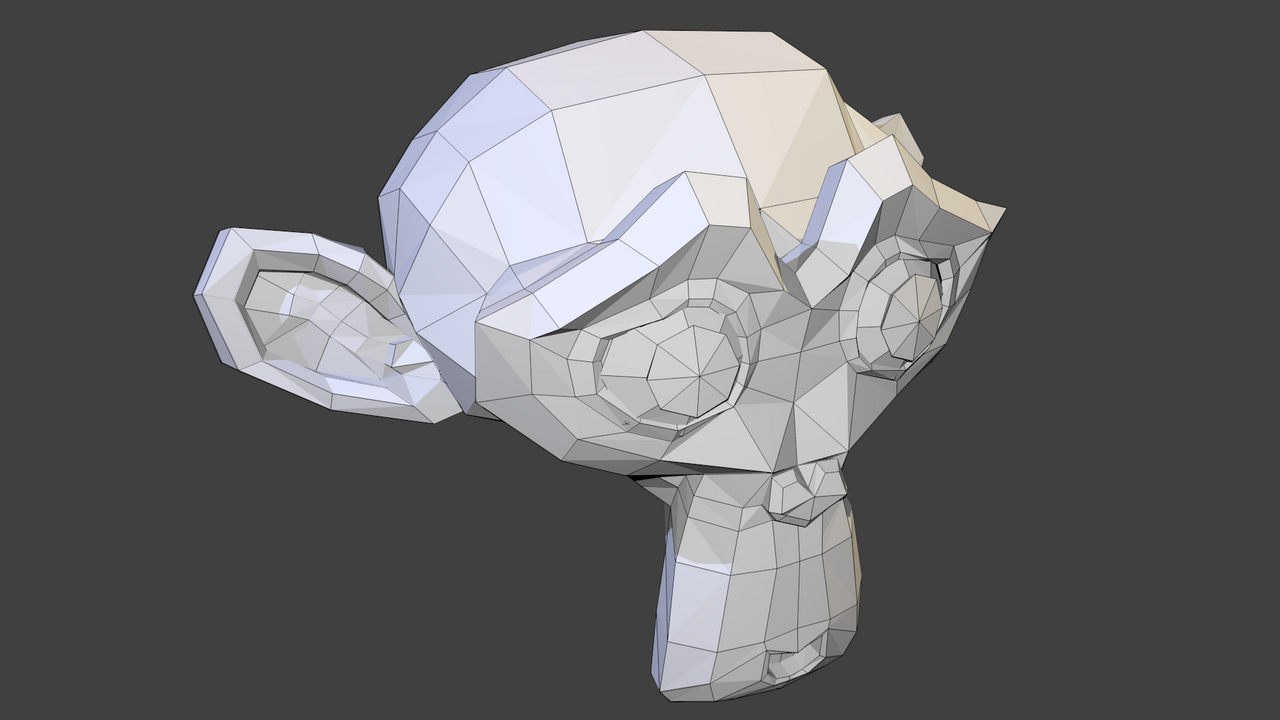
While 2D performance is often dominated by sprites and fill-rate, the 3D space is heavily impacted by geometric mesh complexity. Rendering a dense, high-poly model when it's a hundred meters away from the camera is a massive waste of processing power.
The Level of Detail Strategy
A LOD system generates simplified variations of the same mesh, lowering the polygon count as the object gets farther away from the camera:
- LOD 0: The full, highly detailed model, rendered when the object is close to the camera.
- LOD 1: A 40% to 50% triangle reduction. Used at medium distances, preserving the main silhouette.
- LOD 2: A 70% to 80% geometry reduction. Fine details disappear, leaving only broad shapes.
- LOD 3 or Impostor (Billboard): At extreme distances (such as distant forest trees), the 3D mesh can be swapped for a 2D plane displaying a pre-rendered image of the model.
LOD Tools and Best Practices
In open-source software like Blender, the Decimate modifier helps automate edge and face reduction, though manual topology review remains essential to preserve deformation along animated joints on characters and creatures. For modular environments and static props, engine-level tools (such as Unreal's automatic LOD generator or Unity and Godot's LOD groups) handle seamless mesh transitions based on the screen percentage occupied by the object.
Using modular or stylized 3D models built with clean topology saves an immense amount of effort here, letting you configure distance transition thresholds without having to retopologize meshes from scratch.
Efficient Texture Compression and Management
Whether you're building a 2D pixel art project or a realistic 3D game, the format in which textures are stored in GPU memory dictates overall smoothness.
File Formats vs. VRAM Formats
There is a common misunderstanding regarding disk file formats (PNG, JPG, WebP) versus memory formats in VRAM. PNG is a compressed format for storage on disk; once loaded into video memory, however, it is fully uncompressed into raw 32-bit RGBA data unless hardware block compression is applied.
To optimize video memory, modern engines use block compression formats supported directly by the GPU:
- Desktop (DirectX/Vulkan): The BC (Block Compression) or DXT families (such as BC1 for opaque images and BC3/BC7 for textures with alpha channels).
- Mobile (Android/iOS): ASTC or ETC2, which drastically cut texture footprints in mobile memory without noticeable visual quality loss.
Channel Packing
In PBR (Physically Based Rendering) workflows for 3D games, channel packing is an essential technique. Instead of keeping separate grayscale texture files for Roughness, Metallic, and Ambient Occlusion, these three maps are combined into the color channels of a single image file:
- Red Channel (R): Ambient Occlusion
- Green Channel (G): Roughness
- Blue Channel (B): Metallic
This technique cuts three texture sample instructions down to a single fetch, saving crucial GPU memory bandwidth.
Conclusion: Optimize Smarter, Not Harder
Graphical optimization doesn't mean compromising your game's visual appeal; it's about allocating processing power where players will actually notice it. By organizing sprites into well-calibrated texture atlases, configuring balanced LOD steps for 3D assets, and adopting efficient texture compression pipelines, you ensure smooth framerates and fast loading times. Integrate these habits from your very first prototype builds to guarantee your game runs flawlessly across any target platform.